PDF to Excel Quick Answer
To convert a PDF to Excel online, upload your PDF document into the PDF AI extraction tool. Our engine uses OCR and table-mapping algorithms to detect rows and columns. Within seconds, you can download a structured, fully editable .xlsx spreadsheet where your data is accurately separated into distinct cells without merged-column errors.
The fastest, most accurate way to convert PDF tables to Excel is by utilizing a dedicated AI-powered extraction tool. Instead of manually copying and pasting hours of data, our intelligent algorithm maps non-editable PDF tables directly into beautifully structured, editable Excel spreadsheets.
Table of Contents
Whether you are dealing with a 20-page bank statement, a quarterly financial report, or scanned invoices, locked data is a massive roadblock for accountants and professionals. Our team has tested thousands of financial documents to perfect an extraction engine that explicitly prevents column merging and formatting disasters.
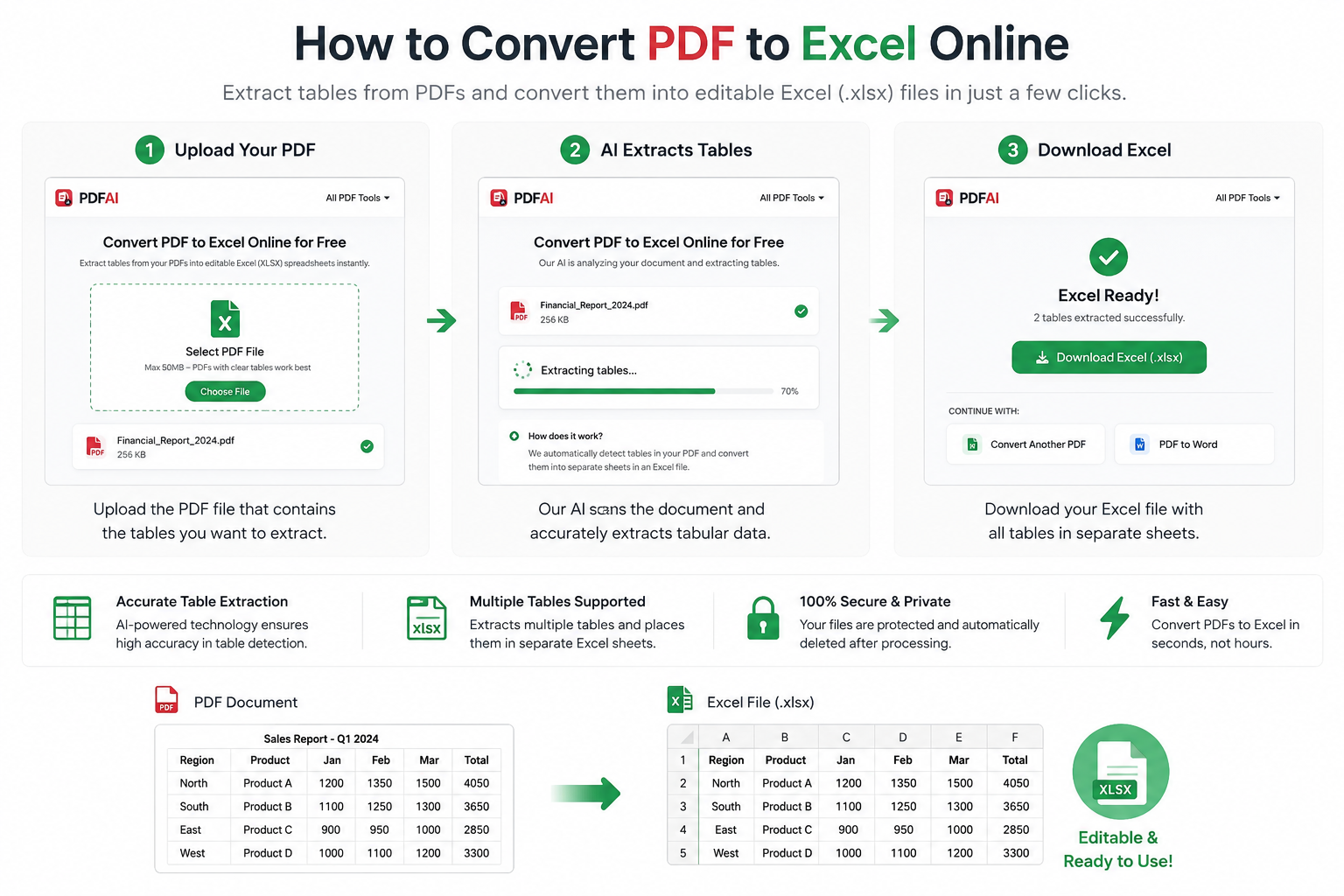
Our automated entity parsing identifies rows and columns, preserving your exact data structure directly into an .xlsx file.
Why AI is Better Than Copy-Pasting
A PDF (Portable Document Format) is essentially a digital photograph of text. When you highlight a table in a PDF reader and hit "Copy", your computer doesn't understand the underlying rows and columns—it just sees a block of unstructured text. When you paste it into Excel, all the numbers usually dump into a single column. This is exactly why a dedicated PDF to Excel Converter is essential.
Smart Cell Mapping
Our algorithm detects invisible table borders and un-merges cells correctly, ensuring your financial numbers stay in their exact columns.
Instant Processing
Manual data entry that used to take hours can now be completed in under 10 seconds right in your browser. No software required.
How OCR Converts Scanned PDFs to Excel
One of the biggest challenges in data extraction is dealing with scanned PDFs. If someone prints an Excel sheet, scans it using a physical scanner, and emails it to you, that PDF contains zero actual text data. It is literally just an image.
To convert an image PDF to Excel, PDF AI utilizes Optical Character Recognition (OCR). Here is how it works:
- Pattern Recognition: The OCR engine scans the image and identifies letters and numbers based on visual patterns.
- Line Detection: It actively looks for horizontal and vertical lines in the image to understand where the table grid exists.
- Table Reconstruction: Once the text is extracted and the grid is mapped, the AI rebuilds the table digitally and exports it cleanly as an editable
.xlsxfile.
For the highest accuracy when using OCR PDF to Excel, ensure that your scanned documents are clear, well-lit, and uploaded at a high resolution.
Common PDF to Excel Use Cases
Data extraction is required across almost every modern industry. Here are the most frequent scenarios where users rely on our tool to convert locked documents into workable spreadsheets:
Comparison: PDF AI vs Manual Entry
Let's look at why using an automated AI tool is vastly superior to the traditional method of copying and pasting, or retyping data by hand.
| Feature / Capability | PDF AI Converter | Manual Copy & Paste |
|---|---|---|
| Preserves Columns & Rows | ||
| Supports Scanned PDFs (OCR) | ||
| Handles 50+ Page Tables | ||
| Processing Speed |
How to Convert PDF to Excel (Step-by-Step)
You can execute this data extraction securely without downloading any heavy software. Here is the process:
Data Security & Privacy
Enhance Your Workflow
Need to do more with your documents? PDF AI offers a complete suite of free tools to help you manage your files before or after you extract your data:
Frequently Asked Questions (FAQ)
Can I convert scanned PDFs to Excel?
Yes! If your PDF is a scanned image, our system automatically utilizes advanced OCR (Optical Character Recognition) technology to read the text inside the image and reconstruct the table layout flawlessly in Excel. High-resolution scans yield the best results.
Is the OCR extraction feature free?
Yes, PDF AI includes OCR processing in our free conversion tier. You do not need to pay extra to extract data from image-based PDFs or scanned receipts.
Will my tables merge into one messy sheet?
No. If your PDF contains multiple tables spread across different pages, our tool intelligently separates them. When you open your downloaded Excel file, you will find multiple labeled tabs (e.g., Page 1, Page 2) at the bottom of the workbook keeping data organized.
Can I convert bank statements to Excel?
Absolutely. Bank statements are the most common files converted using our tool. The AI is specifically trained to recognize transaction tables, dates, debits, and credits, mapping them cleanly into an `.xlsx` format.
Are Excel formulas preserved during conversion?
No. Because a PDF is a visual format, it does not store underlying mathematical formulas (like `=SUM(A1:A5)`). The tool will extract the visible numerical values accurately, but you will need to re-apply any necessary formulas in Excel afterward.
What is the maximum file size I can upload?
Our free tier handles generous file sizes that comfortably cover standard multi-page reports, statements, and invoices. If your file is exceptionally large (e.g., hundreds of pages), consider splitting it first using our Split PDF tool.
Does this tool work on mobile devices?
Yes! You can convert a PDF to Excel directly from your iPhone, iPad, or Android device. Simply open your mobile browser, upload the file, and download the resulting spreadsheet to your phone's storage.
Is this tool really free to use?
Yes, our standard PDF to Excel extraction tool is 100% free. You can convert your documents and download the data without creating an account, logging in, or providing credit card details.
Stop Typing. Start Analyzing.
Don't let your valuable data remain trapped in a PDF. Use our free tool to extract tables instantly, securely, and accurately.