Quick Answer
The easiest and most reliable way to convert JPG to PDF is to upload your image files (JPG, JPEG, or PNG) into a free online converter, drag the thumbnails to arrange them in the correct sequential order, and export a single PDF file. Using a dedicated image to PDF converter is faster than manual desktop methods, ensures cross-platform compatibility, makes files easier to share or upload to government portals, and protects your documents from unwanted alterations.
In today's fast-paced digital world, handling multiple raw image files can quickly become a logistical nightmare. Whether you are submitting a multi-page handwritten university assignment, uploading identity documents to a secure government portal, or emailing an expense report to an accounting department, standard image formats often fail to meet professional requirements.
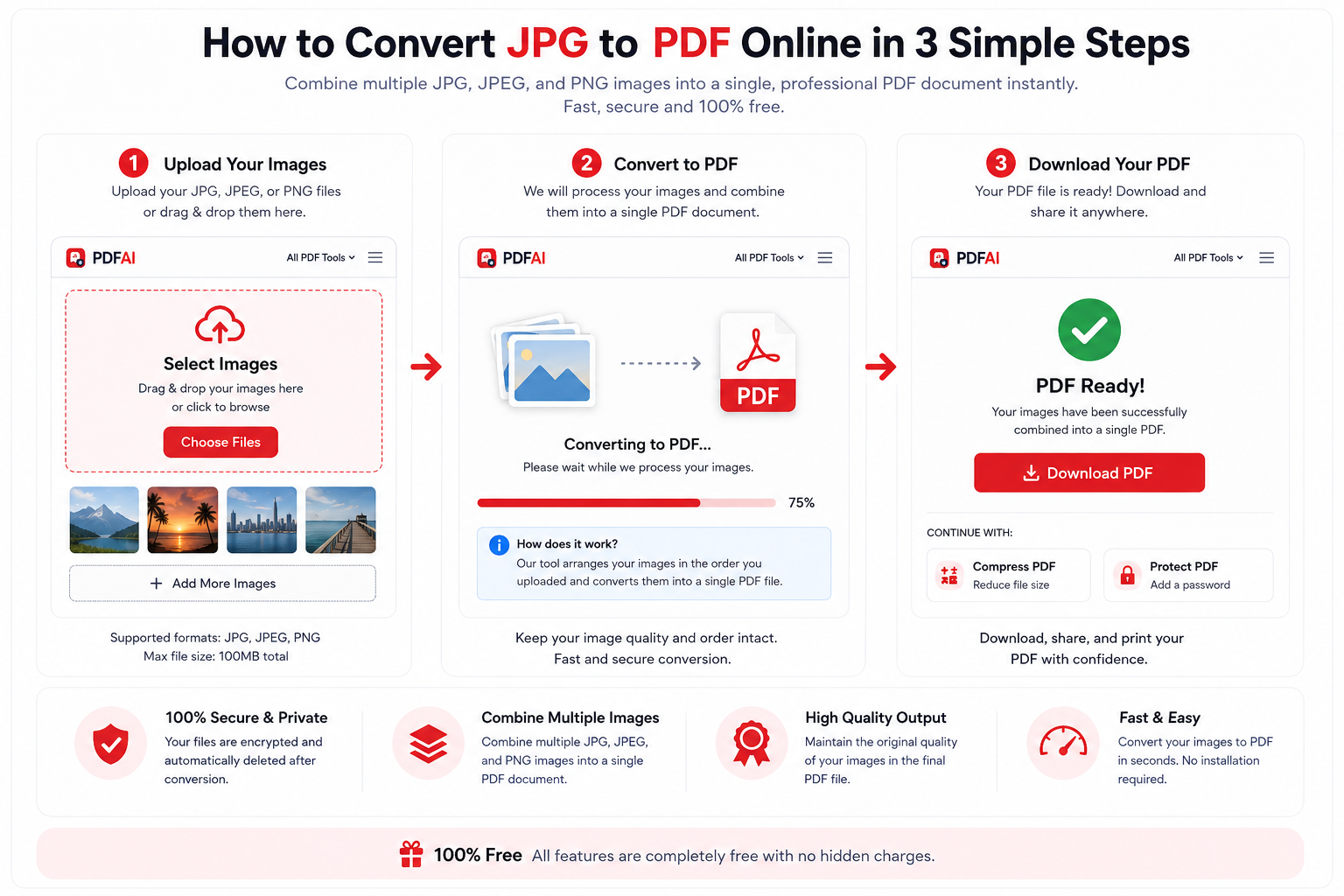
A high-quality JPG to PDF converter allows you to compile, arrange, and secure your image files into a neat PDF portfolio directly in your web browser.
Table of Contents
- What is a JPG File?
- What is a PDF Document?
- Why Convert JPG to PDF?
- JPG vs PDF: Which Format Is Better?
- Best Practices Before Converting
- How to Convert JPG to PDF Online (The Best Way)
- How to Convert JPG to PDF on Windows
- How to Convert JPG to PDF on Mac
- How to Convert JPG to PDF on Android
- How to Convert JPG to PDF on iPhone
- Common Conversion Mistakes to Avoid
- What to Do After Converting (Merge, Compress, Protect)
- Data Security & Privacy Protocols
- Frequently Asked Questions (FAQ)
Most corporate and academic institutions require a unified, standardized document format. Learning how to properly use an image to PDF converter empowers you to combine dozens of loose photos into one neat, print-ready, and secure file. In this ultimate, comprehensive guide, we will explore everything you need to know about transforming your images into universally accepted PDFs across all your devices, covering beginner workflows to advanced document management strategies.
What is a JPG File?
TL;DR: JPG (Joint Photographic Experts Group) is a widely used lossy image compression format primarily designed for storing and sharing single digital photographs.
A JPG (or JPEG) is arguably the most common image format on the internet and in digital photography. Created by the Joint Photographic Experts Group, it relies on "lossy" compression. This means that to keep file sizes small and manageable, the algorithm permanently discards some data every time the file is saved.
While JPGs are fantastic for displaying colorful photographs on social media or personal galleries, they are fundamentally flawed when it comes to document management. A JPG can only store one single image per file. It does not support multiple pages, it does not embed fonts, and it provides absolutely no structured way to organize a sequence of scanned documents.
What is a PDF Document?
TL;DR: PDF (Portable Document Format) is a versatile file type created by Adobe to present documents—including text formatting and images—independently of application software, hardware, and operating systems.
The Portable Document Format (PDF) was developed by Adobe in the early 1990s and has since become an open ISO standard. Unlike image files, a PDF is a complete "container." It can hold embedded vector graphics, raster images (like your JPGs), interactive forms, clickable links, and searchable text—all within the same file.
Most importantly for professionals, a PDF locks the layout in place. If you convert JPG to PDF, the resulting document will look identical whether the recipient opens it on an ancient Windows PC, a modern Mac, a Linux server, or a mobile phone. This reliability is why the PDF is the undisputed king of digital document sharing.
Why Convert JPG to PDF?
TL;DR: Converting photos to a PDF locks your images in a specific order, creates a single unified file, ensures consistent printing, and is the mandatory format for most formal portal submissions.
Why should you take the extra minute to convert a jpeg to PDF or PNG to PDF? Here are the undeniable benefits that make this conversion workflow strictly necessary for professionals, legal teams, and students alike:
JPG vs PDF: Which Format Is Better?
While both formats are incredibly popular, they serve completely different purposes. Let's look at a direct, feature-by-feature comparison of JPG vs PDF to understand which format is technically superior for document submission and archiving.
| Feature | JPG / JPEG (Image) | PDF Document |
|---|---|---|
| Primary Use Case | Storing single photographs & web graphics | Document storage, sharing, & formal submission |
| Multi-page Support | ||
| Printing Experience | ||
| Portal Acceptance | ||
| Document Security | ||
| Text Selection (OCR) |
Best Practices Before Converting
TL;DR: Before you convert, ensure your photos are well-lit, clearly focused, cropped to remove unnecessary backgrounds, and roughly the same orientation.
A free JPG to PDF converter is a powerful tool, but it can only work with the input you provide. To ensure your final document looks highly professional, follow these best practices before initiating the conversion process:
- Ensure Good Lighting: If you are photographing a physical document (like a receipt or ID card), avoid casting a shadow with your phone. Use bright, natural, and indirect light.
- Crop Out the Background: Your professor or accountant does not need to see your bedsheets or kitchen table. Use your phone's basic photo editor to crop the image down to just the document itself.
- Check Legibility: Zoom in on your photo. If you cannot read the smallest text clearly, take the photo again. Blurry JPGs will result in a blurry PDF.
- Pre-Rotate Images: While some converters allow you to rotate images during the process, it is much faster to ensure all your photos are upright in your gallery before uploading.
How to Convert JPG to PDF Online (The Best Way)
TL;DR: Using a cloud-based converter is the fastest method. Upload your files, arrange the thumbnails, and click generate. No software installation is required.
If you are looking for the absolute fastest and most reliable method, utilizing a cloud-based JPG to PDF online tool is infinitely superior to dealing with native OS quirks. You do not need to purchase an expensive Adobe Acrobat license or download heavy, resource-draining software. PDF AI offers a powerful, unlimited, and intuitive tool to compile digital photos seamlessly.
Ready to Build Your PDF Portfolio?
Upload your photos safely, arrange them precisely, and download a professional, watermark-free PDF file in seconds.
Launch the JPG to PDF ToolHow to Convert JPG to PDF on Windows
TL;DR: Windows users can use the native "Microsoft Print to PDF" feature within the File Explorer to combine multiple selected images into a single PDF file.
If you are working entirely offline or prefer using the built-in tools provided by Microsoft, both Windows 10 and Windows 11 have a native "Print to PDF" feature built directly into the operating system shell.
- Open the native File Explorer and navigate to the folder containing your JPG images.
- Select all the images you want to convert. You can hold down the
Ctrlkey on your keyboard and click multiple files to select them in the exact order you want them to appear. - Right-click on any highlighted image and select Print from the dropdown context menu.
- A "Print Pictures" dialog box will appear. Click the Printer drop-down menu at the top left and select Microsoft Print to PDF.
- On the right side of the window, you can adjust the layout (e.g., full page, wallet size). For documents, leave it on "Full page photo".
- Click the Print button. Windows will prompt you to choose a file name and save location for your newly generated PDF file.
How to Convert JPG to PDF on Mac
TL;DR: macOS features the powerful "Preview" application, which allows you to natively select multiple image files, drag them into a single window, and export them as one PDF document.
macOS users have a notoriously easy time with document management thanks to the powerful built-in "Preview" application. Apple has natively supported image-to-PDF conversion for over a decade.
- Open Finder and select the batch of image files you wish to combine into a document.
- Double-click the selected files so they open simultaneously in the Preview app. (If they open in separate, scattered windows, go to Preview Preferences > Images and ensure "Open groups of files in the same window" is checked).
- Look at the left sidebar (Thumbnails view). Click and drag the image thumbnails up or down to arrange them in your desired chronological order.
- Go to the top Apple menu bar, click File, and select the Print... option.
- In the bottom left corner of the Print dialog box, click the small drop-down arrow next to the word PDF and select Save as PDF.
- Name your file, choose a destination (like your Desktop or Documents folder), and hit Save.
How to Convert JPG to PDF on Android
TL;DR: On an Android device, you can select an image in Google Photos, access the Print menu, and use the "Save as PDF" virtual printer to export the file.
Whether you quickly snapped a picture of a receipt or downloaded an infographic, you can convert it to a PDF directly from your Android smartphone without downloading bloated, ad-filled third-party apps from the Play Store.
- Open the native Google Photos application or your device's default Gallery app.
- Tap to select the photo you want to convert. If you need to compile multiple pages, long-press to select multiple images simultaneously.
- Tap the three-dot Menu icon (often located in the top right corner) or the Share icon, and swipe until you find the Print option.
- At the top of the print preview screen, tap the printer selection drop-down menu and choose Save as PDF.
- Tap the prominent yellow or blue PDF download icon to finalize the process and save the file directly into your Android's local "Downloads" or "Documents" directory.
How to Convert JPG to PDF on iPhone
TL;DR: iOS users can convert photos to PDFs by using the Share Sheet, selecting "Print," and using a two-finger pinch-out gesture on the print preview thumbnail to generate a PDF.
Apple's iOS allows you to bypass the App Store entirely when converting photos to PDFs using a clever, slightly hidden trick inside the system-wide Share Sheet.
- Open the default Photos app on your iPhone or iPad.
- Tap Select in the top right corner and tap on the images you want to convert into a document.
- Tap the Share icon (the square with an arrow pointing upward) located at the bottom left.
- Scroll down the list of actions and tap Print.
- On the Print Preview screen, ignore the printer selection. Instead, use two fingers to pinch outwards (zoom in) directly on the first page thumbnail preview. This hidden iOS gesture magically converts the raw images into a multi-page PDF view.
- Tap the Share icon once again in this new view, and select Save to Files. Choose an iCloud or "On My iPhone" folder to store your newly created PDF.
Common Conversion Mistakes to Avoid
TL;DR: Avoid uploading mixed orientations, forgetting to check page order before generating, and ignoring the final file size, which can prevent successful email delivery.
While the process of utilizing an image to PDF converter is generally straightforward, users frequently run into a few common roadblocks that result in unprofessional documents. Be aware of these pitfalls:
- Ignoring Page Order: Uploading files and immediately clicking "Convert" without checking the thumbnail order is the #1 mistake. Always verify that Page 1 is actually the first image you want the reader to see.
- Uploading Massive 4K Photos: If you take photos with a modern smartphone, each JPG can be 5MB to 10MB in size. Converting 20 of these will result in a 100MB+ PDF that no email server will accept. You must compress the file afterward.
- Mixed Orientations: If you photographed one page vertically (portrait) and the next page horizontally (landscape), the resulting PDF will force the reader to tilt their head. Always ensure consistent orientation before conversion.
- Leaving Messy Backgrounds: Scanning a document on a busy wooden table and leaving the table visible in the final PDF looks highly unprofessional. Crop your images tight to the paper's edge.
What to Do After Converting (Merge, Compress, Protect)
TL;DR: Once your images are converted, use dedicated PDF tools to compress the file size, merge it with existing documents, add page numbers for navigation, or apply password protection.
Creating your PDF is often just step one of a proper document workflow. Once your pages are perfectly converted, you might need to finalize your document for formal submission. Here is how you can use our suite of free utilities to enhance your new file:
- Reduce the File Size: As mentioned in the mistakes section, high-resolution photos make massive PDFs. To fix this, run your final document through our Compress PDF tool to reduce the file size by up to 80% without losing visual clarity.
- Combine with Other Documents: Did you forget to include a cover letter or a signed contract? You don't need to start over. Simply use our Merge PDF files utility to seamlessly attach your new image-based PDF to an existing document.
- Enhance Navigation: A 20-page portfolio of images can be confusing to navigate during a meeting or review. You can easily add page numbers to your PDF (like "Page 1 of 20") to give it a polished, corporate feel and establish a clear viewing sequence.
- Lock Down Sensitive Data: If your newly converted PDF contains medical records, tax documents, or identity cards, do not leave it unprotected. You must protect your PDF with a password using strong AES encryption to ensure only authorized individuals can open it.
- Need to Revert? If you ever receive a PDF and need to extract the raw images back out of it, you can easily reverse the process using a PDF to JPG converter, or extract the text using a PDF to Word extraction tool.
Data Security & Privacy Protocols
Frequently Asked Questions (FAQ)
Below we have compiled the most comprehensive list of answers regarding image-to-PDF conversion, covering everything from basic usage to advanced formatting queries.
Is the JPG to PDF conversion completely free?
Yes, converting your image files to a PDF document using PDF AI is 100% free. There are no hidden subscription fees, no tricky paywalls at the end of the process, and no daily limits. Furthermore, we never place our own branding or watermarks on your final, generated documents.
Will my image quality be reduced during conversion?
No. Our online conversion algorithm embeds your images directly into the PDF wrapper while strictly preserving their original resolution, color profile, and DPI (Dots Per Inch). Your text, graphics, and photographs will remain razor-sharp and fully readable without any degradation in quality.
Can I convert multiple JPG files into a single PDF?
Absolutely. To convert multiple images into a single document, simply utilize our batch processing capabilities. Upload all your JPG files into our online utility simultaneously, arrange the thumbnails in your preferred chronological sequence, and hit convert. The software will automatically merge them into one multi-page PDF.
How do I convert photos to PDF on my phone?
You have two great options. You can use the native "Print to PDF" tricks built into iOS (via the Share Sheet) and Android (via Google Photos), or simply open our web-based tool directly in Safari or Chrome. You can select photos straight from your camera roll, arrange them, and download the PDF directly to your mobile device.
Is my sensitive data secure during the conversion?
Yes, your security is guaranteed. All files transferred to our servers are protected by end-to-end 256-bit encryption. Additionally, our servers automatically delete your uploaded images and the resulting PDF file immediately after your session ends. We keep absolutely zero backups of your private documents.
What is the maximum file size I can upload?
Our robust cloud servers are designed to handle high-resolution image batches. While limits can occasionally vary based on server load, you can comfortably upload dozens of standard, high-quality smartphone images (typically up to 50MB combined) without experiencing timeouts or errors.
Does the converter support PNG and JPEG formats?
Yes! While it is broadly referred to as a "JPG to PDF" tool due to common search habits, our advanced converter fully supports PNG, JPEG, GIF, and standard JPG formats. You can effortlessly mix and match different file types in the exact same document generation.
Are there offline methods to convert images to PDF?
Yes. If you are entirely without internet access, you can use the "Microsoft Print to PDF" feature built into Windows File Explorer, or the native "Export as PDF" function within the Preview app on macOS. However, our online tool is generally faster and offers a better interface for manual page reordering.
How do I reorder the pages before creating the PDF?
After you upload your batch of images to the PDF AI tool, they will appear as a grid of small preview thumbnails. Simply click, hold, and drag these thumbnails to rearrange them. Place the image you want as Page 1 in the top-left position, and arrange the rest sequentially.
Can I password protect the PDF after I convert it?
Yes, but it is a two-step process. First, use this tool to convert your images into an unprotected PDF and download it. Next, navigate to our free Protect PDF tool, upload your new document, and apply a secure AES password to lock the file from unauthorized viewers.
How do I share the converted PDF file?
Once downloaded, a PDF is incredibly easy to share. You can attach it to a standard email, upload it to a cloud storage provider (like Google Drive or Dropbox), send it via professional messaging apps like Slack or Microsoft Teams, or upload it directly into university and HR web portals.
What happens if my images are different sizes or orientations?
Our intelligent PDF compiler automatically attempts to center and scale images to fit within standard document page dimensions (like A4 or US Letter). However, for the absolute best results, we recommend cropping your images to uniform aspect ratios and ensuring they are all rotated correctly before uploading them to the tool.
Can I convert a PDF back into individual JPG files?
Yes. If someone sends you a compiled PDF and you need to extract the raw images for editing or design work, you can use our dedicated PDF to JPG extraction tool. It will reverse the process, breaking the document apart and giving you a downloadable ZIP file containing all the original high-quality images.
Will this converter work flawlessly on my Mac?
Yes. Because PDF AI is a completely web-based, cloud-hosted application, it is completely operating system agnostic. It works perfectly on macOS (via Safari or Chrome), Windows, Linux distributions, and ChromeOS devices without requiring any local software installation.
How should I convert old, physically scanned photos?
First, use a flatbed scanner or a high-quality smartphone scanning app to digitize the physical photos into JPG format. Once the digital JPG files are saved to your device, upload them into our converter tool. Arrange them chronologically, and generate your unified PDF digital archive.
Ready to Transform Your Images?
Upload your photos securely, arrange them precisely, and download a professional, widely-accepted PDF document in seconds.
Access the Free Converter